ONLINE PERFORMANCE APPRAISAL OPERATING MANUAL
Click here to access the appraisal Portal
How to login

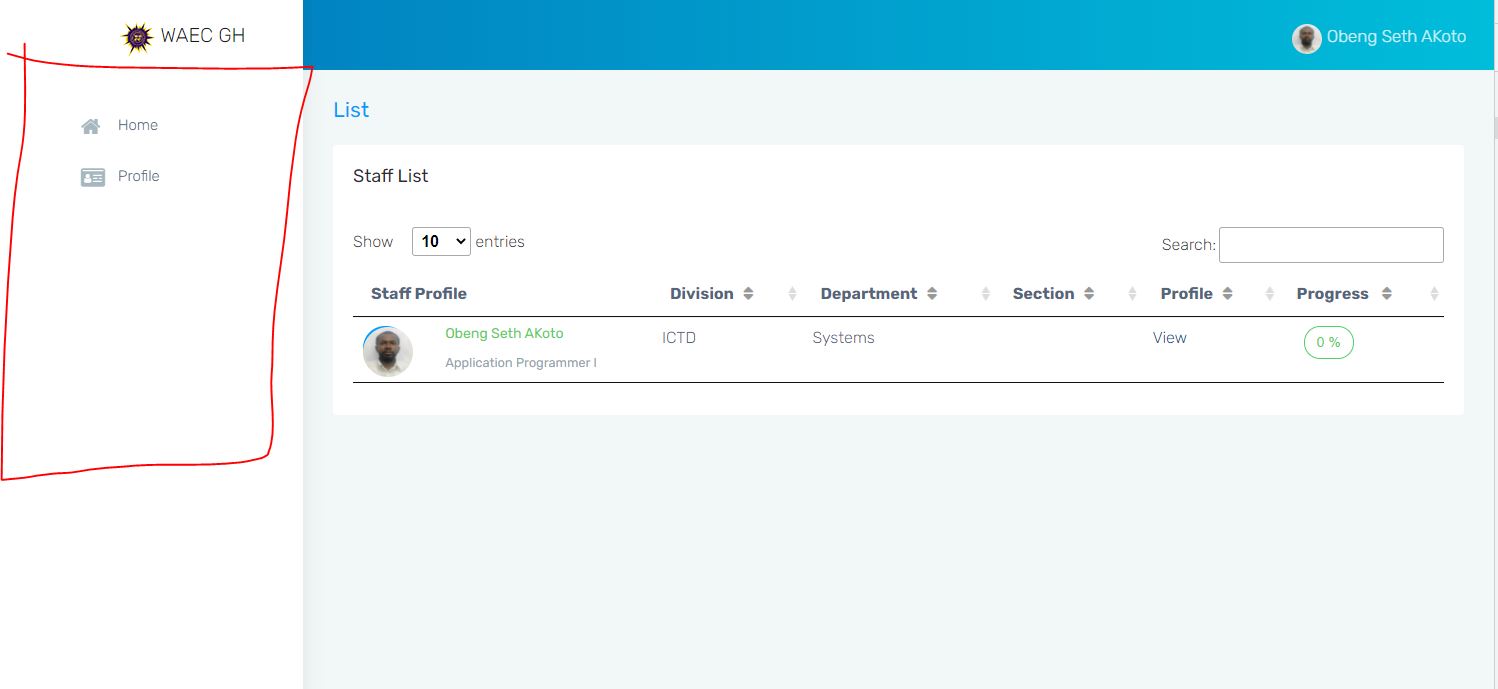
Menu
- HOME Contains all the years of appraisal with their corresponding staff category
- PROFILE Contains information about the staff and also for appending of signature
1.0 How to Fill the Appraisal Form
(1) At the home page select current year with corresponding staff category by clicking on view.

(2) Select staff by clicking on the view under profile

(3) Once the profile is loaded click on appraise.

(4) Complete the form, ensuring that your bio data is correct. Note All fields with * are read only. i.e content cannot be change. Contact HRM for corrections relating to such fields(*).

(5) Use the next and previous buttons to move through the various pages.
NB. Next pages cannot be accessed when mandatory fields are left blank (A prompt in red automatically appears).
(6) Use the submit button to indicate completion of the appraisal form and to forward the document to the immediate superior officer (ie. Heads of Section, Department, Division or HNO). There is a notification to confirm before the appraisal is submitted.
NB: A Print preview option is available
2.0 Appraisal by Reporting Officer
The reporting officer should appraise the officer and return the form to the appraisee (officer being appraised) by clicking the submit button. The appraisee will be alerted by a text message once the reporting officer has completed the appraisal.(Please refer to step 4.0 for directions)
3.0 Comfirmation Of Appraisal by Appraisee
(1) Follow step 1.0 above to review the appraisal by the reporting officer.
(2) The bio data pages will not be editable (a padlock would appear on the pages).
(3) Click on submit button after assessing the appraisal.
(4) A prompt to confirm would pop up and officers should certify before submitting. The submit button is an indication of the officer’s agreement of the appraisal. ( A printable option is available before certification).
(5) If the officer is not satisfied with the appraisal by the reporting officer he/she should discuss with officer before submission of certification.
4.0 DIRECTIONS FOR VARIOUS HEADS
4.1 Heads of Section
Only the staff list for the Section would be displayed.
(1) Follow step 1.0
(2) First three (3) pages will be disabled (cannot be edited).
(3) Pages (4) to (9) should be completed
(4) Complete the form after appraisal discussion with the Appraisee (Appraisal interview).
(5) Click on the submit button and confirm. The appraise will be alerted of the submission of the form.
NB : The appraisee may request for review of the appraisal.
4.2 Heads of Department
(1) With Sections
a. Follow 1.0
b. First nine (9) pages will be disabled (a padlock would appear on the page) .i.e. cannot be edited.
c. Complete the form as required.
d. Click the submit button and confirm.
(2) Without a Section
a. Follow 1.0
b. Follow 4.1
c. Follow 4.2
4.3 Heads of Division
(1) With departments
(a) Follow 1.0
(b) Some pages will be disabled .i.e. cannot be edited.
(c) Complete the form as required.
(d) Click the submit button and confirm.
(2) Without a department
(a) Follow 1.0
(b) Follow 4.1
(c) Follow 4.2
(d) Follow 4.3 (1)